
TAP For Memory (or just TAP) 

Your product includes a Tap for Memory feature! Depending on the product, the Memory Tag may be hidden inside the item OR you may receive a Tap for Memory sticker like the one shown here. If you receive a sticker, simply place it wherever you’d like on your product.
Please note: Once the Tap for Memory sticker is applied, it cannot be moved or removed without potentially damaging the tag.
Tap for Memory can be added to charms, visor clips, magnets, ornaments, and many of our products when it shows the available option.
TRY IT!
Simply tap your smartphone against the product or the Tap for Memory sticker and the URL of your memory will open (ex: online photo album, video, voice message, song, playlist, etc).
Works with most Apple and Android smartphones with NFC capabilities.
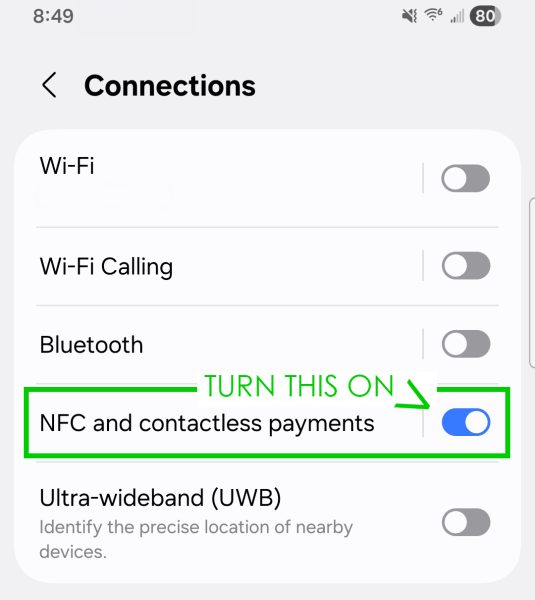
- Make sure NFC is turned on in your phone’s Settings.
- Your phone cannot be on the lock screen when tapping.
- Move your phone around the tag until you hear a beep or see a notification.
- Your phone will need internet access to reach the URL programmed on the Tap For Memory Sticker
Your online memory may open automatically. If the tag has not been programmed yet, it will take you to the instructions page (see below “Need to add your memory”.
FAQs
You can link almost anything that has a web URL, including a photo album, video, voice message, song, playlist, or other online memory.
Here is a video for adding a URL with NFC Tools: https://www.youtube.com/shorts/o6ZyCu5lVC0
- Download NFC Tools or NFC Check from the Google Play Store or Apple App Store.
- You will need to ERASE the tag before adding your memory as it can only hold 1 URL.
To Erase: Open the NFC app and click ERASE and tap your tag to your phone. Close the app and double check it by tapping it to your phone after it has been erased to make sure it is blank. Once it is Empty/Erased proceed by opening the NFC app and: - Open the app and scan/tap your product or Tap for Memory sticker.
- Select Write.
- Choose URL.
- Enter or paste the web URL for your memory.
Please note: there is a character limit of roughly 130 to 137 characters are allowed. - Tap Write again. Hold the tag to your phone to write.
TIP: DO NOT move the tag as it is writing otherwise you will receive an error. - You should see “Write Complete” when successful.
- Close the app and tap your phone on the tag again to make sure your memory opens correctly.
You can change the memory URL at anytime by following the steps above by erasing the tag and adding your new URL.
Tip: Make sure your URL is accessible to the person receiving the product. If you use a private photo, video, or file, make sure the recipient has permission to view it.
HOLD IT. TAP IT. RELIVE THE MEMORY. ❤️
Open “Settings” on your phone and search for “NFC”. Make sure this setting is toggled to “ON”
Android Video: https://www.youtube.com/shorts/jmRyQbav9uU
Iphone Video: https://youtu.be/oYtEtDOdubo?is=d9EO38QjzGi0R_nY
We provide instructional videos and step-by-step guides to help you program your Tap For Memory product and use it with your smartphone.
Please note, we do NOT provide technical support or troubleshooting for issues such as “I can’t get it to work with my phone,” phone NFC compatibility, or assistance with adding, uploading, or programming your memory onto your Tap For Memory product. Customers are responsible for following the provided instructions and ensuring their phone is NFC-compatible. There are no refunds on Tap for Memory if it is not compatible with your phone or you are unable to program it.
Please review our available videos and instructions for help with setup and programming.
HOLD IT. TAP IT. RELIVE THE MEMORY. ❤️